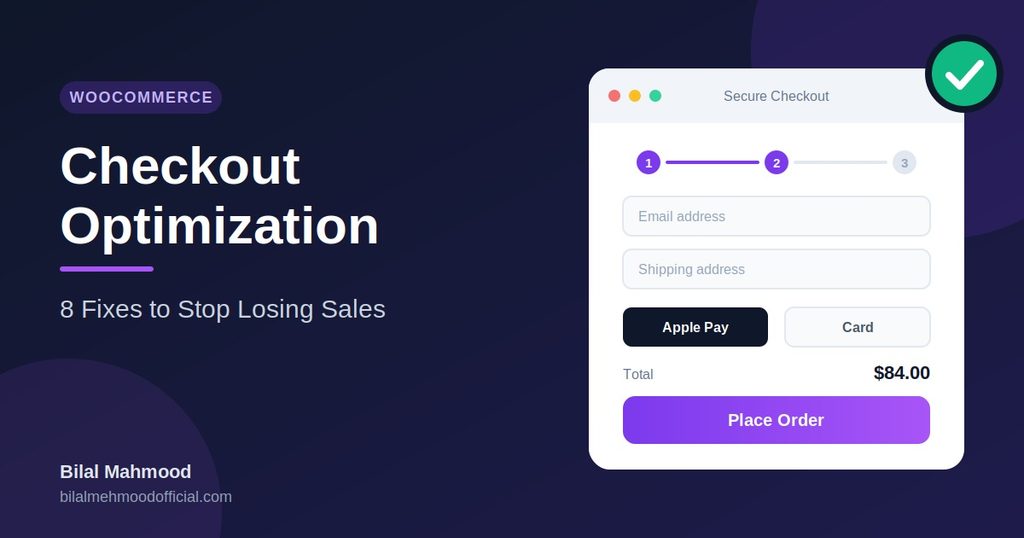
WooCommerce checkout optimization is the key to recovering lost sales and turning casual browsers into paying customers.
You did the hard part. Someone found your store, liked a product, and added it to the cart. Then they vanished at checkout.
It happens all the time. Most online stores lose shoppers between the cart and the payment page. The cause is usually something small and fixable. Effective WooCommerce checkout optimization ensures a smooth, friction-free experience from start to finish.
Here is what I check first when a WooCommerce store has a checkout problem.
1. Cut the form fields for WooCommerce checkout optimization
Look at your checkout page the way a stranger would. Do you really need a company name, a second address line, and a phone number?
Every extra field gives shoppers a reason to quit. Remove what you don’t need to ship the order. If you sell digital products, you can drop the shipping fields entirely. For official setup guidelines, you can check out the WooCommerce Official Website.
2. Offer guest checkout
Forcing people to create an account before they pay is one of the quickest ways to lose them.
In WooCommerce, go to Settings, then Accounts & Privacy, and allow guest checkout. You can still offer an account after the purchase, once they already trust your brand.
3. Use a one-page checkout
A cart page, an information page, and a payment page: that’s three chances for someone to get bored and leave.
A clean single-page checkout, or the newer WooCommerce Checkout block, keeps everything in one place and feels much faster.
4. Add the payment methods people actually use
If your customers expect Apple Pay, Google Pay, or a local wallet and you only offer cards, some will leave immediately.
Check what your audience prefers and add those gateways. Make sure the payment buttons are clearly visible.
5. Be honest about shipping costs
Surprise shipping fees at the last step are the top reason people abandon carts.
Show an estimate early, right on the product page or in the cart. If you can afford it, a free-shipping threshold also nudges people to add one more item.
6. Make it work on mobile
Open your checkout on your phone and try to buy something yourself.
Are the buttons big enough? Does the keyboard cover the fields? Does the page jump around while loading? Fix whatever annoys you, because your customers feel it too.
7. Show trust signals
People are about to type in sensitive card details. Small reassurances help tremendously.
Include an SSL padlock, recognizable payment logos, a clear returns policy link, and a visible contact email near the pay button.
8. Speed up the page
A slow checkout feels risky and untrustworthy. If the “Place order” button takes several seconds to respond, shoppers click twice or close the tab.
Keep plugins on this page to a minimum. I wrote about speed in more detail in my guide to making a slow WooCommerce store faster.
Test one change at a time
Don’t change everything on the same day. Change one thing, wait a week, and look at your completed orders.
That’s the only reliable way to know what actually worked for your store. Constant monitoring will keep your checkout optimized for maximum sales over the long run.
Want help with your store?
If your checkout is losing customers and you’d rather not dig through settings yourself, I can take a look.
I’m Bilal, a WordPress and WooCommerce developer, and I build stores, fix conversion problems, and handle speed and SEO.